Default Theme
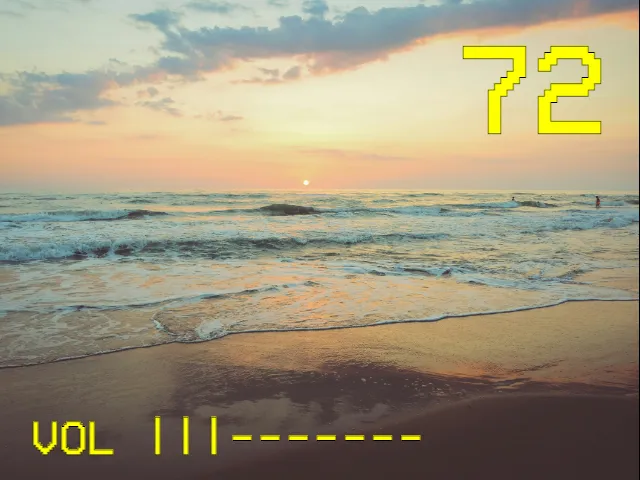
The default on-screen display in Television Simulator is based on an amalgamation of late 1990s and early 2000s on-screen displays that were used in consumer televisions. The displayed Tuner information is therefore pretty basic, including a channel number and not much more. The Info screen shows audio information in the style of a closed caption display, and the Receiver shows volume levels using |||--- bars.
Being the default theme, you don’t need to do anything to enable it. You can still set it explicitly:
osd: theme: defaultColors
Section titled “Colors”The default theme uses two colors:
primaryColorchanges the main OSD text color. If you do not set it, TVS usesyellow.accentColorchanges the text stroke around the OSD text. If you do not set it, TVS usesblack.
These colors apply to the tuner, mute indicator, and receiver volume display. The audio info and channel info panels use their built-in black background with white text.
osd: theme: default primaryColor: "#00fffc" accentColor: "#001018"You can also override a specific OSD section. TVS supports tuner, receiver, and info sections; each section inherits from the parent osd block unless you override it.
osd: theme: default primaryColor: yellow accentColor: black tuner: primaryColor: white accentColor: navy receiver: primaryColor: lime accentColor: blackTheme Options
Section titled “Theme Options”The default theme does not define any additional themeOptions.
Aspect Ratio
Section titled “Aspect Ratio”All built-in OSD themes support aspectRatioBehavior:
hybridcenters the OSD in a 4:3-safe area while allowing some theme graphics to fill wider screens. This is the default.stretchlets the OSD use the full available screen.letterboxconstrains the OSD to the 4:3 screen area.
osd: theme: default aspectRatioBehavior: letterbox