Remote Management

Television Simulator instances can be remotely managed to provide custom or additional functionality. Uses of this feature might include:
- You run a public instance of TVS and want to deliver emergency or weather alerts to your users.
- You’re exhibiting devices running TVS and want to simulate an analog broadcast by individually adjusting the picture noise and blur of different connected devices.
- You run a digital signage solution using TVS and want one centralized control panel for controlling what is displayed and where.
- You’re embedding TVS inside an IFrame on your homepage and want to send commands to it based on events that take place outside its IFrame.
Or some new application that hasn’t been thought of yet!
Remote management sends commands to TVS. Your server or parent page decides which clients receive those commands and whether declarative state should be saved and sent again later.
Connection Modes
Section titled “Connection Modes”There are multiple ways to connect TVS to remote management. Each has different capabilities, but a TVS configuration can use only one at a time:
- Server-Sent Events: The default mode. TVS opens an
EventSource, and your server sends named events whenever an action or state change is needed. - JSON file: TVS periodically fetches a versioned JSON state document. This works with static hosting and generated endpoints, but it does not support transient remote inputs.
- IFrame embedding: A page containing TVS in an IFrame sends event messages using
window.postMessage().
Server-Sent Events
Section titled “Server-Sent Events”Since: TVS 6.6.0
Set type to sse and provide the URL of your EventSource endpoint:
remoteManagement: type: sse url: https://control.example.com/tvs/events clientId: lobby-tv key: my-api-keytype defaults to sse, so the following shorthand forms are equivalent:
remoteManagement: https://control.example.com/tvs/eventsremoteManagement: url: https://control.example.com/tvs/eventsThe clientId and key properties are optional. If clientId is omitted, TVS creates an ID and keeps it in session storage. This makes the ID stable across reloads in one tab while giving another tab its own ID. An explicitly configured ID is useful for a device with a known identity.
TVS adds clientId and, when configured, key to the endpoint’s query string:
https://control.example.com/tvs/events?clientId=lobby-tv&key=my-api-keyYour endpoint should respond with Content-Type: text/event-stream. Each command is a named SSE event. The event’s data must be a JSON-encoded payload; the event name is not repeated inside that JSON:
event: picture-settingsdata: {"noise":0.4,"blur":1.5}For example, a Node.js server can write an event to an open response like this:
function sendEvent(response, eventName, data) {    response.write(`event: ${eventName}\n`);    response.write(`data: ${JSON.stringify(data)}\n\n`);}
sendEvent(response, 'receiver-settings', {    volume: 35,    isMuting: false});
Browsers reconnect an EventSource automatically when the connection is interrupted. If you want a reconnecting client to regain its declarative state, your server can remember that state and send it again after the client connects. Replay is a server feature, not a requirement of the TVS protocol, and transient remote events should not be replayed.
If the endpoint is on a different origin than TVS, it must also return suitable CORS headers.
JSON File
Section titled “JSON File”Since: TVS 6.6.0
JSON mode polls a URL for a complete declarative-state snapshot:
remoteManagement: type: json url: https://control.example.com/tvs/state.json pollIntervalMs: 5000 clientId: lobby-tv key: my-api-keypollIntervalMs defaults to 5000 milliseconds and cannot be lower than 1000. TVS waits for one request to finish before scheduling the next one, so requests do not overlap.
As in SSE mode, TVS adds the clientId and optional key query parameters to every request. The URL does not have to be a literal static file: it can be an endpoint that generates a different document based on the requesting client.
The response must be a JSON object, with version set to 1 for future compatibility. It may contain channel, receiver, picture, layouts, and overlays:
{ "version": 1, "channel": { "channelNumber": "12", "hideOsd": true }, "receiver": { "volume": 35, "isMuting": false }, "picture": { "noise": 0.4, "blur": 1.5 }, "overlays": []}The document describes current desired state rather than a queue of events:
versionis required and must currently be1.channelis optional. When present, TVS selects it after every successful poll. Removing it stops reasserting a channel but does not change the channel currently being watched.receiveris optional, but when present it must contain bothvolumeandisMuting. Removing it stops reasserting receiver state but leaves the current volume and mute state unchanged.pictureis the complete set of remote picture overrides. Removing it or using an empty object clears all remote picture overrides.layoutsis an optional dictionary of named Character Generator layout documents. An overlay may uselayoutRefinstead of an inlinelayout; the name must exist in this dictionary. The same layout can be reused in several slots with differentdata.overlaysis the complete list of active slots. Removing a slot from the list clears it. Omittingoverlaysis equivalent to an empty list. Duplicate slots, invalid slot numbers, unknown layout references, and invalid documents reject the entire snapshot without changing TV state.
Unknown top-level sections and invalid documents are rejected. When a request fails or a document is invalid, TVS keeps the last successfully applied state.
JSON mode cannot send remote button presses or incremental overlay-data-update and overlay-clear events. To produce the same declarative result, publish the updated complete picture, receiver, or overlays section in the next document.
If the JSON URL is on a different origin than TVS, it must return suitable CORS headers. It should also prevent intermediary and browser caching if changes need to appear promptly.
IFrame Embedding
Section titled “IFrame Embedding”Since: TVS 6.6.0
Try out the Embed Mode Demo or use the bundled demo in the reference server
Embed mode lets the immediate parent page control a TVS instance inside an IFrame. For security reasons, you need to specify the domain of the parent page that’s allowed to send commands via parentOrigin.
remoteManagement: type: embed parentOrigin: https://controller.example.comAn origin includes the scheme, hostname, and optional port. Do not include a path, query string, fragment, username, or password. Wildcards are not accepted. Embed mode does not use a client ID or API key.
The parent page sends the same incremental event names and payloads used by SSE, wrapped in a TVS.RemoteManagement message:
<iframe id="tvs" src="https://tvs.example.com/"></iframe>
<script>    const tvsFrame = document.querySelector('#tvs');    const tvsOrigin = new URL(tvsFrame.src).origin;
    tvsFrame.contentWindow.postMessage(        {            type: 'TVS.RemoteManagement',            event: 'picture-settings',            data: {                noise: 0.4,                blur: 1.5            }        },        tvsOrigin    );</script>
The message has three properties:
typemust be exactlyTVS.RemoteManagement.eventis one of the event names documented below.datais the payload for that event.
TVS verifies that the sender is its immediate parent window and that the sender’s origin exactly matches parentOrigin. The parent should likewise pass the exact TVS origin as the second argument to postMessage() rather than using *.
Waiting until TVS is ready
Section titled “Waiting until TVS is ready”The IFrame’s browser load event only means its document loaded. Wait for TVS.EmbedReady before sending remote-management commands:
window.addEventListener('message', (event) => {    if (event.source !== tvsFrame.contentWindow || event.origin !== tvsOrigin) return;
    if (event.data?.type === 'TVS.EmbedReady') {        console.log('TVS API version:', event.data.version);        console.log('Available capabilities:', event.data.capabilities);        // It is now safe to send TVS.RemoteManagement messages.    }});
// Ask TVS to repeat its ready message if it was sent before this listener ran.tvsFrame.addEventListener('load', () => {    tvsFrame.contentWindow.postMessage({ type: 'TVS.EmbedHello' }, tvsOrigin);});
TVS.EmbedReady currently reports protocol version: 1 and capabilities.channelInfo: "all-channels". It means TVS has loaded its configuration and installed its command and read-side message handlers. It does not guarantee that media has buffered or that an external guide synchronization has finished. TVS also sends the ready message without waiting for TVS.EmbedHello; the hello message is a safe way to recover if the first notification was missed.
Reading TV and guide information
Section titled “Reading TV and guide information”The trusted parent can use the read-side messages from the TVS IFrame API. After TVS.EmbedReady, TVS initially sends TVS.Volume, TVS.Muting, TVS.Power, and TVS.CurrentChannel, then sends them again when their values change. For an embed parent, TVS.CurrentChannel describes the channel currently tuned in TVS.
The parent can request the visible channel lineup:
tvsFrame.contentWindow.postMessage({ type: 'TVS.GetChannels', requestId: 'channels-1'}, tvsOrigin);TVS replies with public display metadata rather than complete channel configuration:
{ type: 'TVS.Channels', requestId: 'channels-1', channels: [ { number: '2', name: 'News', abbr: 'NEWS', icon: '/icons/news.png' } ]}The parent may also send TVS.GetListings and TVS.GetUpNext with the arguments documented in the IFrame API. Embed parents receive "all-channels" access, so ranges and explicit channelNumber values are supported. An optional non-empty requestId of up to 128 characters is copied to the corresponding TVS.Channels, TVS.Listings, or TVS.UpNext response. Use unique IDs to match concurrent requests.
These inbound requests and all outbound status messages use the same security boundary as remote-management commands: TVS only accepts its immediate parent at parentOrigin, and the parent should only accept the configured TVS window at the exact TVS origin. TVS.Options, termination messages, config secrets, and complete channel definitions are not exposed to the parent API.
Authentication
Section titled “Authentication”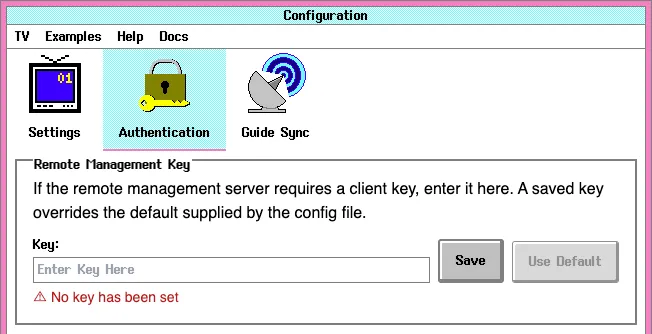
Authentication is optional and dependent on your specific use case. There are two ways to authenticate with your remote management server:
- Specifying the
keyin your configuration file as shown in the examples below. - Adding the key in the setup page of the TVS instance (visit
/setupin your browser)
Storing the key in a config file exposes it to anyone who loads TVS in their browser. If your application uses API keys that have different levels of access, for instance if you’ve got anonymous access or a public API key that emits limited events and individual API keys for authenticated users for instance you could store the unprivileged public key in the configuration file, and allow overrides in the setup page.
Events
Section titled “Events”SSE and embed modes use the event names below directly. JSON mode represents compatible declarative state using top-level document sections instead of individual events.
| Event | SSE | Embed | JSON equivalent |
|---|---|---|---|
remote | Yes | Yes | Not supported |
channel-change | Yes | Yes | channel |
receiver-settings | Yes | Yes | receiver |
picture-settings | Yes | Yes | picture |
overlay | Yes | Yes | Entry in overlays |
overlay-data-update | Yes | Yes | Replace the entry’s data in overlays |
overlay-clear | Yes | Yes | Remove matching slots from overlays, or use an empty list |
For SSE, use the name in the event field and encode the shown object as data. For embed mode, use the name in the message’s event property and the shown object in its data property.
remote
Section titled “remote”Since: TVS 6.6.0
Connection modes: SSE and embed
Runs an imperative command exactly as if the user had used a keyboard shortcut or phone remote. It is temporary input, not declarative state, and should not be saved for replay.
{ "command": "volumeUp"}Supported commands include:
- Power and receiver:
turnOn,turnOff,power(toggles power state),volumeUp,volumeDown,muteOn,muteOff, andmute(toggles mute state). - Tuner:
channelUp,channelDown,subchannelSeparator,info, and the strings0through9. - Picture controls:
toggleScanlines,toggleNoise,toggleChangeChannelNoise,toggleBlur,toggleShadowMask,toggleShadowMaskType,toggleBezels,toggleBezelType,toggleAutoScale,scaleUpX,scaleDownX,scaleUpY,scaleDownY, andresetPicture. - Utilities:
debug,toggleRemotePairingCode, andversion.
These names generally match the override IDs in Keyboard Shortcuts. The navigation commands help, setup, and about are intentionally not accepted because they’ll navigate away from the remotely controlled TV with no way to return to it remotely.
channel-change
Section titled “channel-change”Since: TVS 6.6.0
Connection modes: SSE and embed; the channel section in JSON
Declaratively selects a configured channel. channelNumber is required and is represented as a string so subchannels such as 5.1 retain their exact form. hideOsd optionally prevents the tuner OSD from appearing for this transition.
{ "channelNumber": "5.1", "hideOsd": true}The change is applied even while the television is powered off, but it does not turn the television on.
receiver-settings
Section titled “receiver-settings”Since: TVS 6.6.0
Connection modes: SSE and embed; the receiver section in JSON
Declaratively updates the receiver’s volume and mute state:
{ "volume": 40, "isMuting": false}volume is a number from 0 to 50. isMuting is a boolean. In SSE and embed mode, either property may be omitted and the omitted property remains unchanged. In a JSON snapshot, receiver must contain both properties whenever the section is present.
picture-settings
Section titled “picture-settings”Since: TVS 6.6.0
Connection modes: SSE and embed; the picture section in JSON
Declaratively controls persisted picture overrides:
{ "noise": 0.4, "noiseBlendMode": "screen", "blur": 1.5, "scanlines": true, "changeChannelNoise": true, "shadowMask": "slot-mask", "bezel": "flat", "autoScale": true, "scaleX": 100, "scaleY": 100}Available properties are:
| Property | Accepted value | Effect |
|---|---|---|
noise | Number from 0 to 1, false, or null | Sets the picture-noise opacity. false disables noise. |
noiseBlendMode | String or null | Sets the CSS blend mode used by picture noise. |
blur | Non-negative number, false, or null | Sets picture blur in pixels. false disables blur. |
scanlines | Boolean or null | Enables or disables scanlines. |
changeChannelNoise | Boolean or null | Enables or disables tuning noise during channel changes. |
shadowMask | none, aperture-grille, slot-mask, dot-mask, false, or null | Selects or disables the CRT shadow mask. |
bezel | none, cylindrical, flat, false, or null | Selects or disables the screen bezel. |
autoScale | Boolean or null | Enables or disables automatic screen scaling. |
scaleX | Non-negative number or null | Sets horizontal scale as a percentage. |
scaleY | Non-negative number or null | Sets vertical scale as a percentage. |
In SSE and embed mode, omitted properties remain unchanged and null clears an override. This makes it practical to stream small updates such as { "noise": 0.45 } while a slider is dragged.
In JSON mode, picture is a complete replacement. Properties omitted from the section are cleared, and omitting the entire section clears every remote picture override.
Remote overrides take precedence over channel settings, which take precedence over global configuration and TVS defaults. A user’s manual picture toggle can still temporarily hide an enabled effect.
overlay
Section titled “overlay”Since: TVS 6.6.0
Connection modes: SSE and embed; an entry in the JSON overlays list
Creates or replaces one fixed overlay slot.
Overlay slots
Section titled “Overlay slots”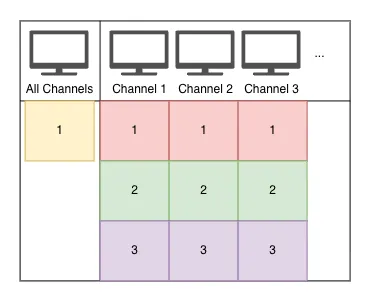
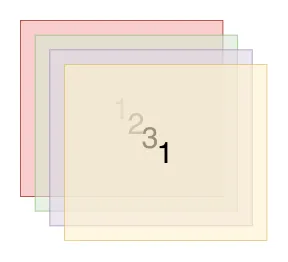
There are 3 overlay slots per channel, and one global slot that applies to all channels. A numbered channel has slots 1 (bottom), 2, and 3 (top). This diagram illustrates the render order:
Example
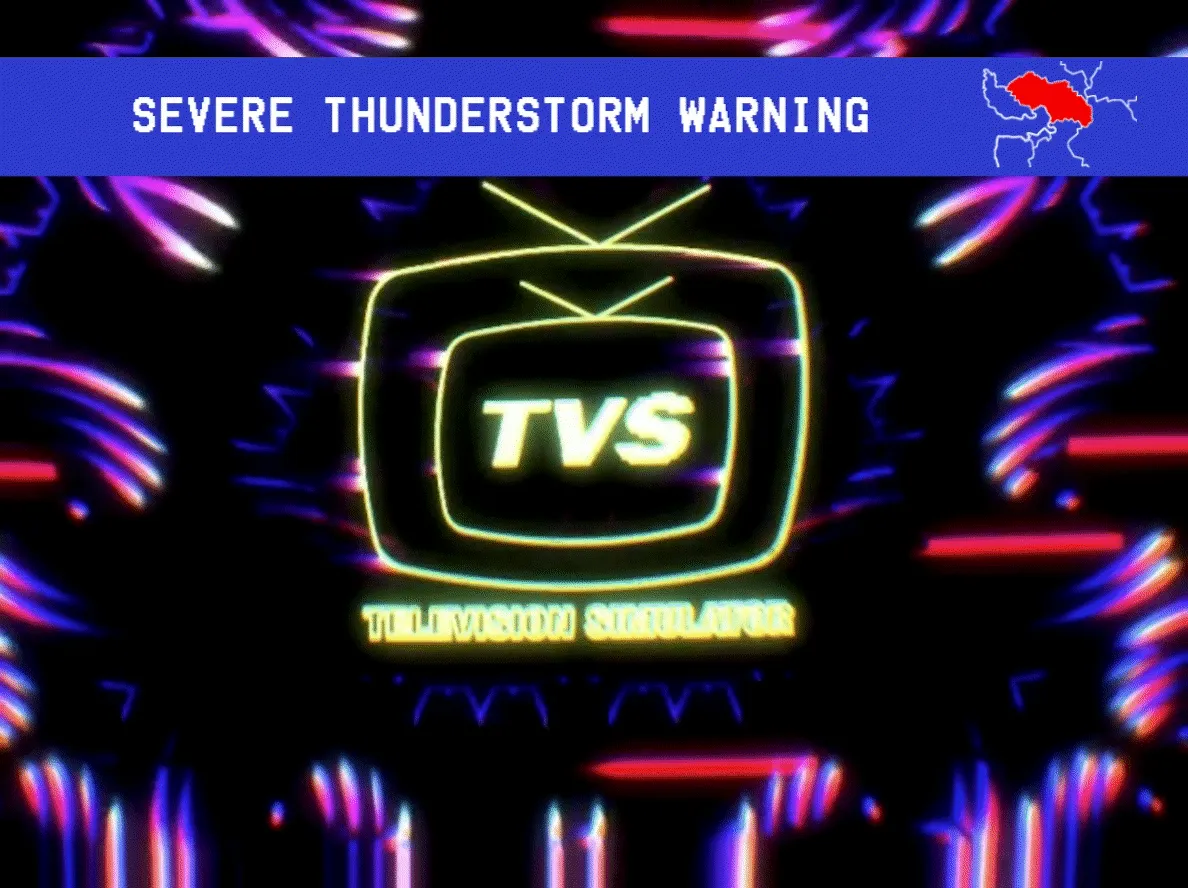
Section titled “Example”{ "channelNumber": "12", "slotNumber": 2, "layout": { "version": 2, "layout": { "showHeader": false, "showFooter": false, "body": { "backgroundColor": "transparent", "textColor": "white" } }, "header": { "id": "header", "memo": "", "lines": [] }, "footer": { "id": "footer", "memo": "", "lines": [] }, "pages": [ { "id": "alert", "memo": "", "lines": [] } ] }, "data": { "variables": { "alert": "Severe thunderstorm warning" } }, "mixBlendMode": "screen", "expiresAt": "2099-08-31T02:30:00.000Z", "audio": { "src": "https://control.example.com/audio/attention-signal.mp3", "loop": true, "behavior": "duck", "duckTo": 0.25 }}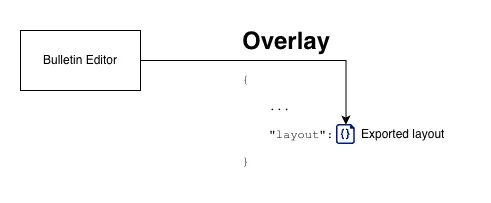
The payload properties are:
channelNumberis required: use one configured channel number such as"12"or"5.1", or"*"for the all-channels slot. The"*"slot appears on configured channels numbered1or higher; channel0and negative input channels are unaffected.slotNumberis required for a numbered channel and must be1,2, or3. Omit it for"*". Sending another complete overlay to the same slot replaces that slot as-is, including its expiration.layoutis a required inline Character Generator bulletin document, such as a project exported from the Bulletin Editor.dataoptionally supplies the layout’s dynamicvariables,lines, andpagesdata.mixBlendModeoptionally sets the CSS blend mode for the entire overlay. It defaults tonormal. Supported values arenormal,multiply,screen,overlay,darken,lighten,color-dodge,color-burn,hard-light,soft-light,difference,exclusion,hue,saturation,color,luminosity, andplus-lighter.expiresAtis a required date and time. Use an ISO 8601 timestamp. Already-expired overlays are ignored.audiooptionally plays audio with the overlay.behaviormay bemuteorduck;duckTois a multiplier from0to1and defaults to0.25when ducking.loopdefaults totrue.
Each payload addresses just one placement. To show similar content on two channels, send two overlays with their own (channelNumber, slotNumber) pairs; later updates and clears are independent. Invalid addresses or unknown overlay properties are rejected without changing active slots. A data-only update cannot change layout, blend mode, or placement; send a complete overlay event to change those.
Overlay audio affects the channel’s managed content audio. Multiple overlay audio sources can play at once; they do not mute or duck one another, and they do not mute television effects such as tuning noise. The visual overlays sit above channel content but below picture noise and the OSD.
In JSON mode, overlays is the complete desired slot list. To reuse a layout, put the complete layout document under a name in layouts and use layoutRef instead of layout on each placement:
{ "version": 1, "layouts": { "weather": { "version": 2, "layout": { "showHeader": false, "showFooter": false, "body": { "backgroundColor": "transparent", "textColor": "white" } }, "header": { "id": "header", "memo": "", "lines": [] }, "footer": { "id": "footer", "memo": "", "lines": [] }, "pages": [{ "id": "alert", "memo": "", "lines": [] }] } }, "overlays": [ { "channelNumber": "12", "slotNumber": 1, "layoutRef": "weather", "data": { "variables": { "alert": "Warning" } }, "expiresAt": "2099-08-31T02:30:00.000Z" }, { "channelNumber": "13", "slotNumber": 2, "layoutRef": "weather", "data": { "variables": { "alert": "Advisory" } }, "expiresAt": "2099-08-31T02:30:00.000Z" } ]}Unknown references, duplicate placements, and invalid layouts reject the whole JSON snapshot. SSE and embed payloads must still include an inline layout.
overlay-data-update
Section titled “overlay-data-update”Since: TVS 6.6.0
Connection modes: SSE and embed; update the complete overlay entry in JSON
Replaces the entire dynamic-data object of an existing overlay without resending its potentially large layout document:
{ "channelNumber": "12", "slotNumber": 2, "data": { "variables": { "alert": "Warning extended until 9:00 PM" } }, "expiresAt": "2099-08-31T03:00:00.000Z"}channelNumber, data, and (for a numbered channel) slotNumber are required. data is a complete replacement, not a merge. expiresAt is optional; when supplied, it replaces the current expiration time. An update to an empty or expired slot has no effect. Send a new complete overlay event to display it again.
JSON mode has no incremental update event. Change data or expiresAt on the corresponding complete object in the next overlays list instead.
overlay-clear
Section titled “overlay-clear”Since: TVS 6.6.0
Connection modes: SSE and embed; for JSON remove matching entries from overlays.
There are four methods of clearing content. Each affects only the receiving client:
Clear everything
Section titled “Clear everything”Send an empty object to clear all overlays on every channel and the all-channels slot.
{}Clear the all-channels slot
Section titled “Clear the all-channels slot”To clear only the all-channels slot:
{ "channelNumber": "*" }Clear an entire channel
Section titled “Clear an entire channel”To clear all three slots on one channel:
{ "channelNumber": "12" }Clear a specific slot on a channel
Section titled “Clear a specific slot on a channel”Include both the channelNumber and the slotNumber to target a specific slot on a channel.
{ "channelNumber": "12", "slotNumber": 2 }An invalid slot number, a slotNumber without a channel, or a slotNumber with "*" is rejected. A channel-specific clear does not clear the all-channels slot. When targeting a specific client with SSE, other clients’ overlays are unaffected.
In JSON mode, remove the matching placement(s) from the next overlays list. Omitting the entire overlays section clears every JSON-managed overlay for that client.
Using the Reference Server
Section titled “Using the Reference Server”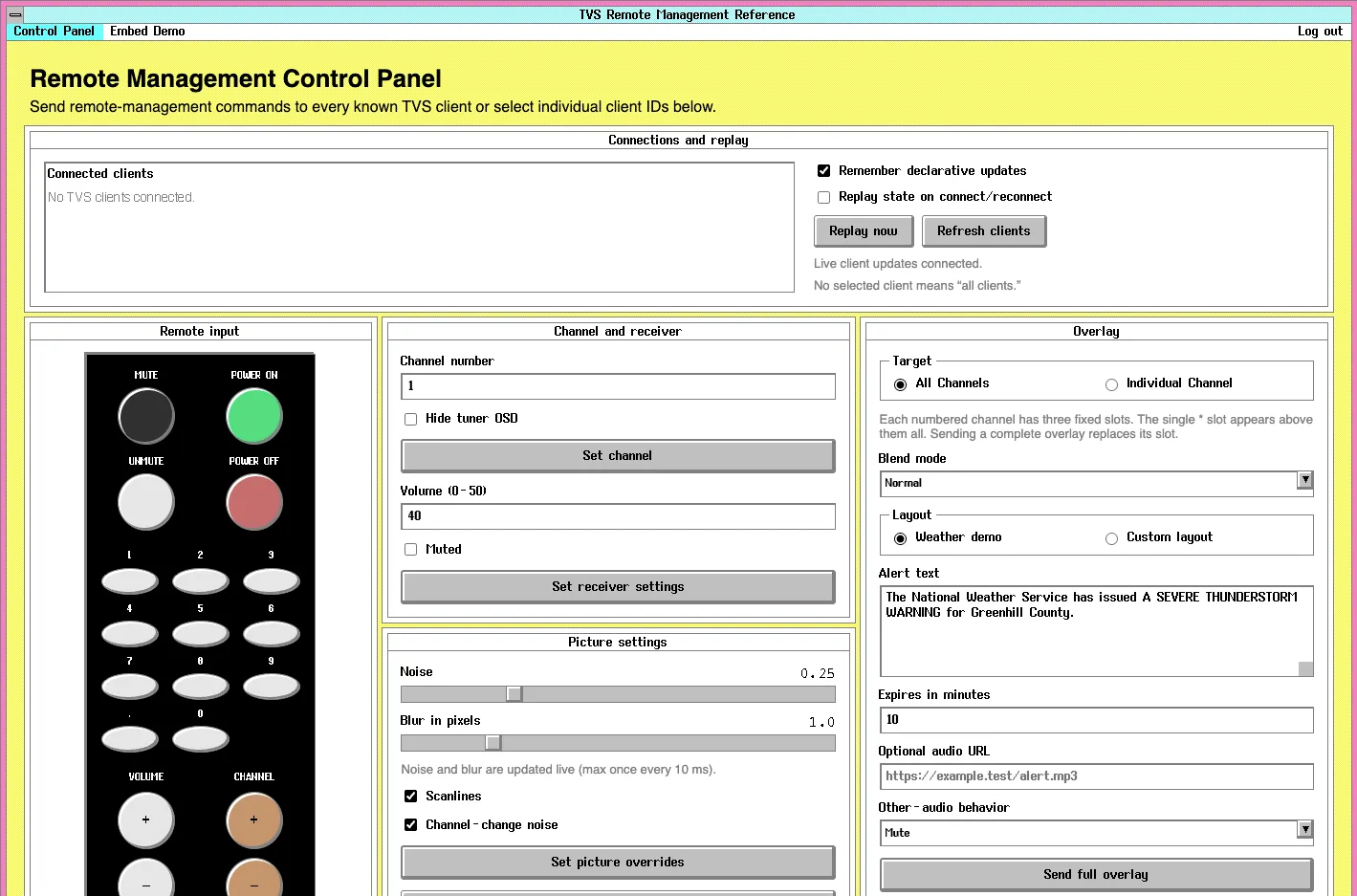
The remote management reference server showcases remote management capabilities and connection modes. It’s available as an open-source project on GitHub.
You can use the reference server to test features, better understand how remote management works or as a base for your own application.
Clone the project and run it locally:
npm installnpm run dev