Using the Launcher
Using the new Television Simulator Launcher is the easiest way to install, update and manage TVS on Windows and Linux. It runs in the system tray and includes an integrated web server that serves TVS without the need for anything else. In addition, the launcher will manage your configurations and keep your user data separate when updating to a new release.
Installation
Section titled “Installation”TVS Launcher is available currently for Windows and Linux. Download the latest version for your platform from the GitHub releases page.
Windows
Section titled “Windows”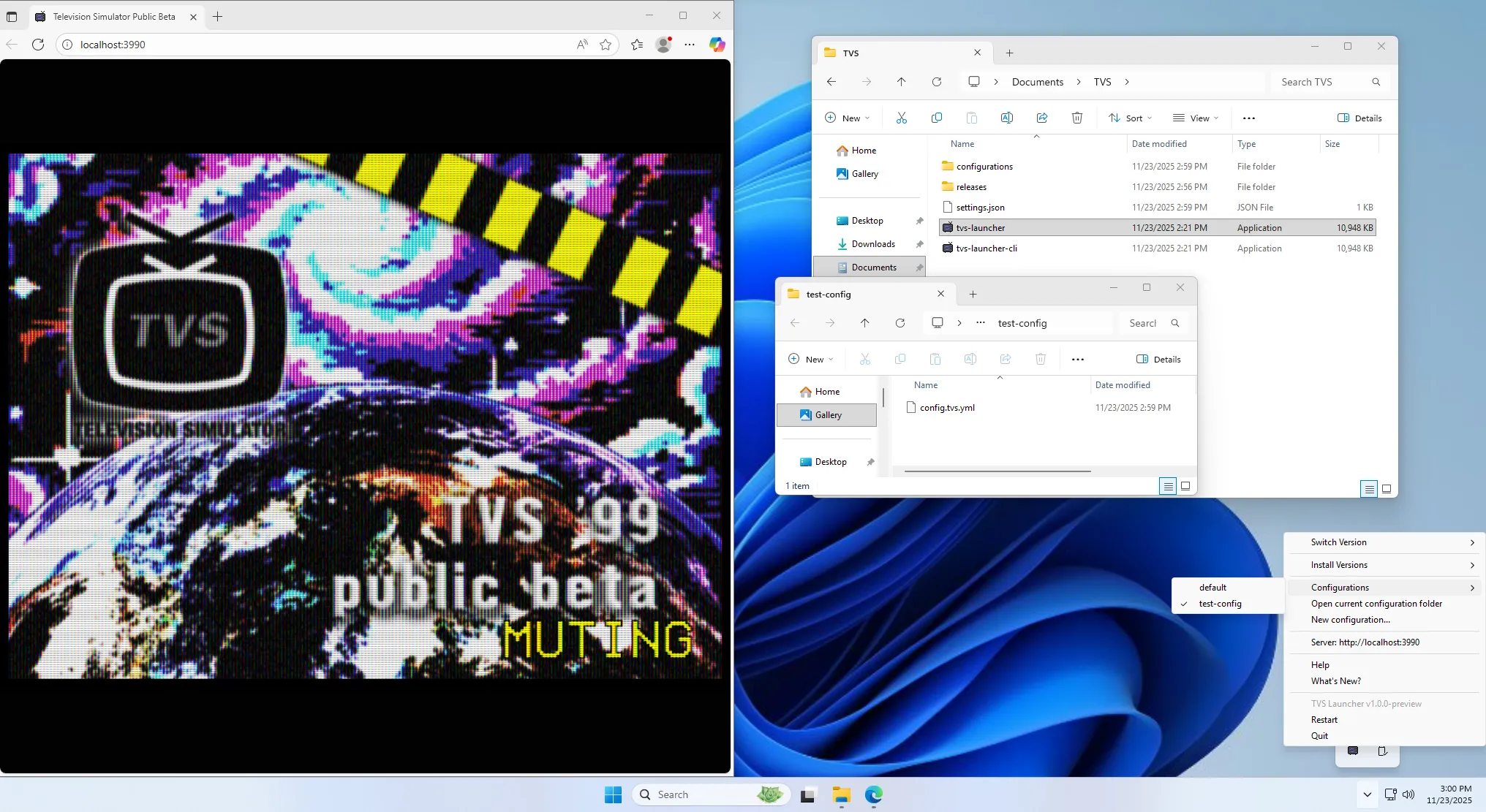
-
Put
tvs-launcher.exein a folder where you want to run the launcher from. -
When you run it for the first time, it will create the necessary folders and be ready to use.
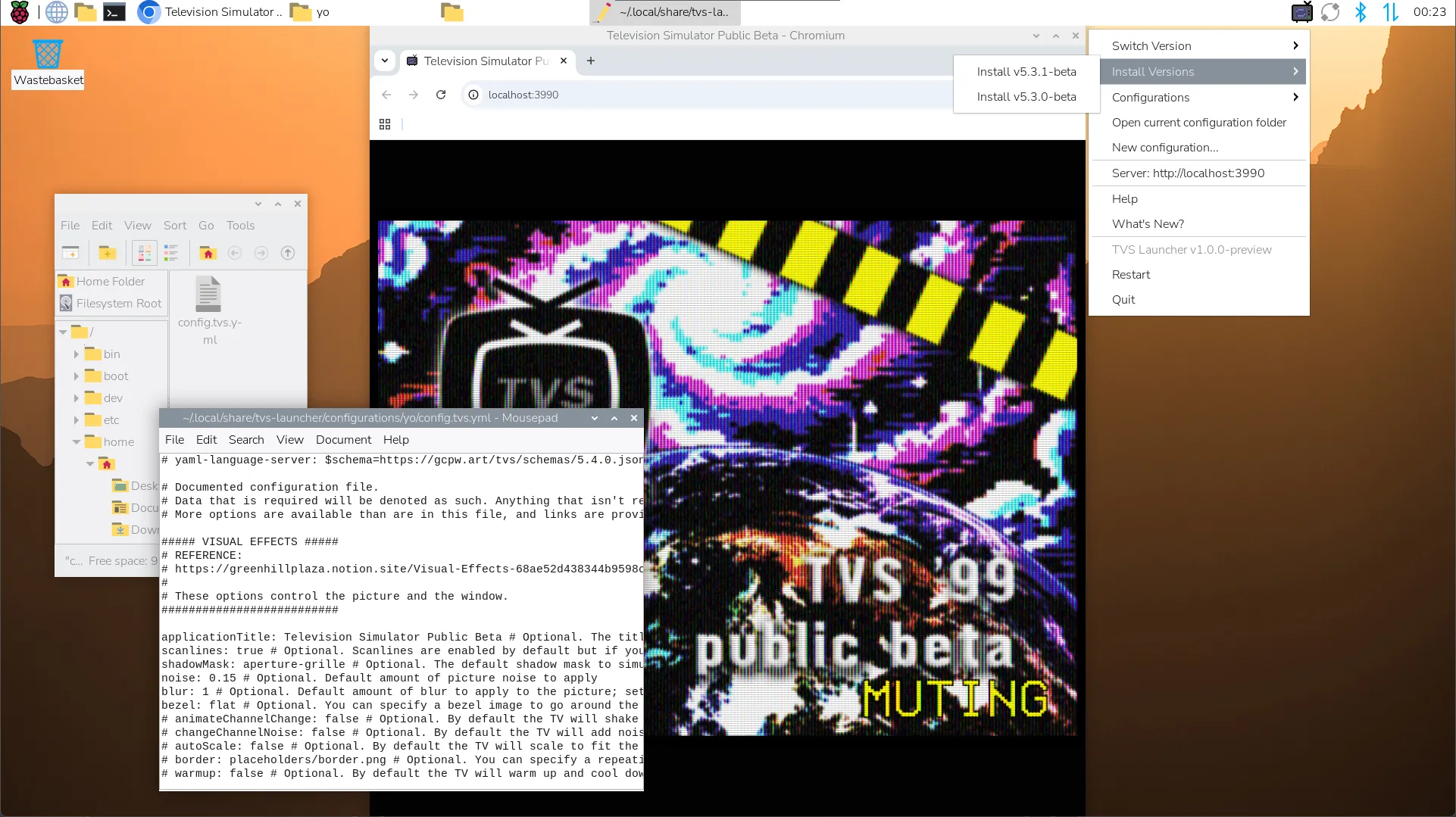
-
Install the package appropriate for your distribution. For example, installing on Raspberry Pi OS would use the
.debpackage forarm64. -
Once installed, you can run it from your application menu (under Audio / Video) or by running
tvs-launcherfrom the terminal.
First run
Section titled “First run”-
Click the tray icon to open the launcher. When you first run it, no releases will be installed yet.
-
Click the Update button at the top to download and install the latest version of TVS.
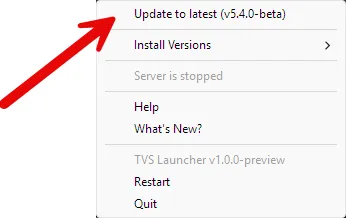
Once updated, the server will start automatically, by default at
http://localhost:3990You can change the server port and host in the
settings.jsonfile located in the root folder.
Configuration Management
Section titled “Configuration Management”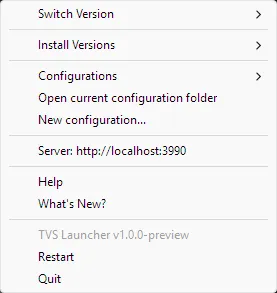
All of your user data and configurations are stored in the configurations folder. When
updating to a new version, your existing data will be preserved. New configurations and installations will
start with the latest demo config file.
Choose “Open current configuration folder” to open the folder where your current configuration is stored and
edit your config.tvs.yml file, and the changes should be reflected when you refresh TVS in your browser.
Using the CLI
Section titled “Using the CLI”The launcher also includes a command-line interface (CLI) that you can use to control it from a terminal or script. This is also useful for running the launcher on Linux servers without a graphical interface.
Run tvs-launcher --help to see the available commands: